Start with a focused reference instead of a blank page
Built for people who want a simple path from idea to real drawing practice on iPhone or iPad.
drawing app for iPad
Device-specific pages help users who already know where they want to draw. The iPad page emphasizes the larger screen, clearer references, and comfortable practice sessions.
Real drawing videos
See short @howtodrawapp demos before you install: AR tracing, drawing projector setup, photo-to-sketch practice, anime sketches, and real paper drawing workflows.
Built for people who want a simple path from idea to real drawing practice on iPhone or iPad.
Built for people who want a simple path from idea to real drawing practice on iPhone or iPad.
Built for people who want a simple path from idea to real drawing practice on iPhone or iPad.
Drawing workflow
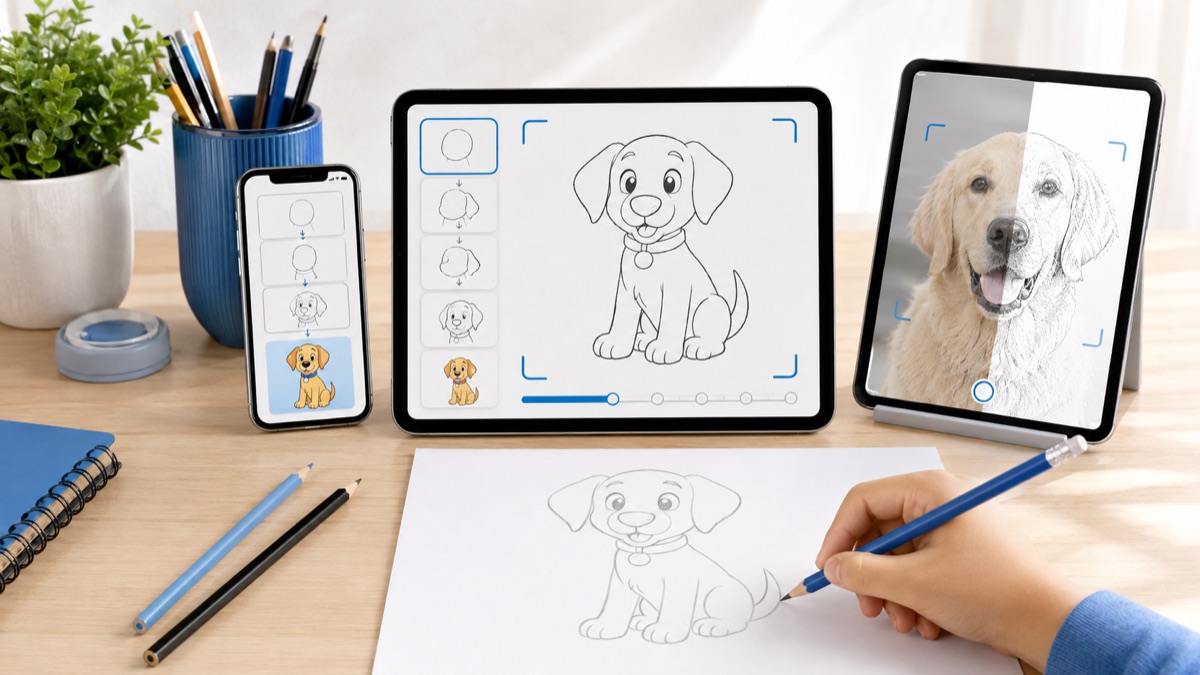
iPad drawing works well for users who want a larger reference view, more comfortable lessons, and a simple way to practice on paper.
Viewing larger references while practicing on paper.
Using the iPad screen for clearer step-by-step lessons.
Trying photo-to-sketch and tracing workflows with more space.
Practicing beginner drawing sessions from a tablet.
Powerful, but often focused on drawing directly on the screen.
Portable, but smaller for reference viewing.
Supports iPhone and iPad while staying focused on guided learning and paper drawing.
iPad users who want drawing lessons
Beginners who prefer a larger reference screen
Users combining tablet viewing with paper practice
Users needing procreate-style layer workflows
People expecting desktop-grade illustration software
Use landscape for wide references.
Keep the tablet stable while practicing.
Pair iPad lessons with paper repetition.
An iPad page should focus on the larger screen, clearer references, and a comfortable practice setup for lessons, tracing, and sketching.
Internal links to beginner, lessons, photo-to-sketch, pencil-sketch, and anime pages create a useful path for tablet users.
The workflow focuses on one drawing goal and keeps the App Store action clear on desktop and mobile.
Open the app, pick one reference, trace the structure, then repeat the same subject without tracing. That creates learning, not just copying.
Yes. The page is built around simple drawing practice and clear references.
Yes. Photo-to-sketch and reference workflows are part of the app positioning.
Yes. AR tracing and camera guidance are core reasons to install the app.
Yes. The workflow is designed for people who want to practice on real paper.
Use the App Store button to open the official iPhone and iPad download.
Start with the guide that matches this search, then try the kids drawing article for simple ideas parents and young beginners can use today.